
Manifold, Watertight Geometry
Every exported STL is manifold (no holes), watertight (no gaps between walls and floor), and includes a flat base. No mesh-repair tools, no Meshmixer cleanup — open and slice directly.
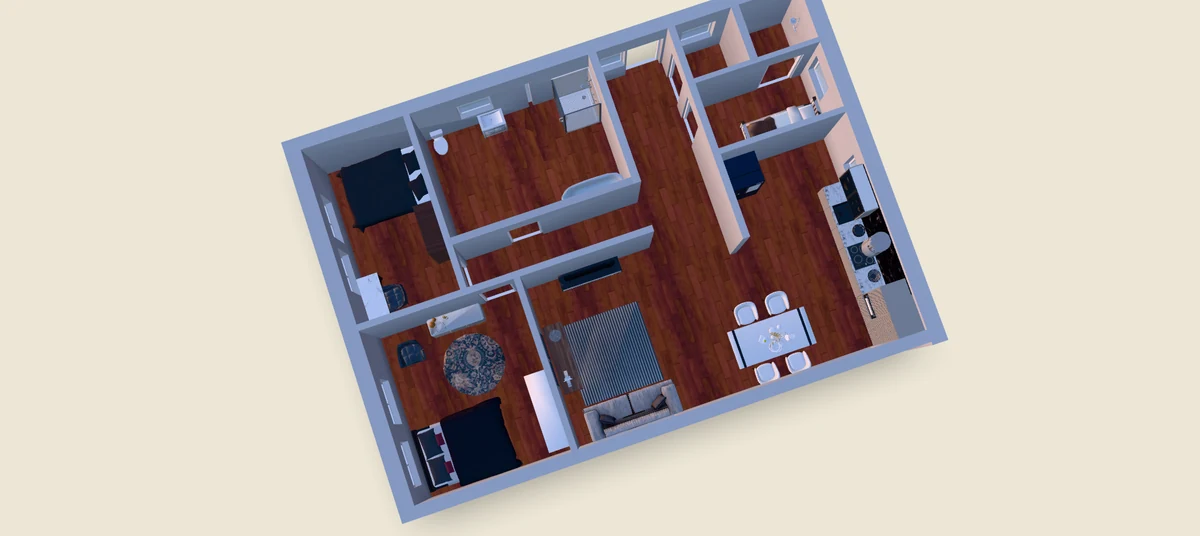
Ritn3D is the only floor plan converter that exports print-ready STL for 3D printing. Convert a 2D floor plan into a 3D-printable STL file — floor plan photo to walkable 3D interior in under two minutes, then one click to STL download. The file is generated specifically for 3D printing — manifold geometry, sealed walls, flat base — so it goes straight into your slicer without mesh-repair tools. The guide below covers what kinds of floor plan work best for 3D printing, recommended print scales, slicer settings, and which Ritn3D tier includes STL downloads.
Updated
Three steps from 2D plan to printed model
Upload a PDF, JPG, or PNG of your 2D floor plan at app.ritn3d.com. The AI detects walls, doors, windows, and rooms and generates a 3D model in about two minutes.
On Pro+ (or with extra credits), tap the STL export button. Ritn3D generates a watertight, manifold STL with a flat base — sized to your floor plan's proportions and ready for any slicer.
Open the STL in Cura, PrusaSlicer, Bambu Studio, Lychee, or any other slicer. Scale to the size you want (typical hobbyist prints are 1:100 to 1:50), generate supports if needed, and print on FDM, SLA, or SLS.
No mesh-repair tools, no slicer warnings
Every exported STL is manifold (no holes), watertight (no gaps between walls and floor), and includes a flat base. No mesh-repair tools, no Meshmixer cleanup — open and slice directly.
The STL exports at the proportions of your floor plan. Use your slicer's scale tool to print at the size you want — typical hobbyist prints range from 1:200 (study model) to 1:50 (detailed scale model).
The geometry works on all three major printer types. FDM (Cura, PrusaSlicer, Bambu Studio) is the most common choice for architectural study models — layer lines are forgiving on flat walls and ceilings.
Pro+ includes 10 STL downloads per calendar month. Extra download credits are available at $3.99 each, and unlike the monthly allotment, the paid extra credits roll over month-to-month indefinitely.
STL export is available from the Ritn3D web app at app.ritn3d.com and from the iOS, Android, and Windows apps. The output is identical across platforms — the same geometry, the same print quality.
Everything you need to know. Can’t find the answer you’re looking for? Feel free to reach out.
Yes. Ritn3D generates the STL specifically for 3D printing rather than re-exporting the in-viewer 3D model directly. The export pass produces watertight geometry (no holes between walls and floor), manifold mesh (every edge belongs to exactly two faces — required by every slicer), and a flat base for printability. Walls are extruded to a consistent thickness that matches your slicer's minimum-wall-thickness settings out of the box. Open the STL in Cura, PrusaSlicer, Bambu Studio, Lychee, or any other slicer, and it loads without errors and slices without warnings — no need for Meshmixer, Netfabb, or other mesh-repair tools. If you do see slicer warnings, the most common cause is over-aggressive scaling that drops wall thickness below your printer's nozzle diameter; scale up and re-slice.
STL and GLB file downloads are a Pro+ feature ($19.99/month). Pro+ subscribers get 10 STL or GLB downloads per calendar month, included in the subscription. Extra downloads beyond the monthly 10 cost $3.99 each as a one-time purchase, and the extra purchased credits roll over month-to-month so they don't expire if unused. The free tier and Pro ($9.99/month) do not include downloads — Pro+ is specifically the tier built for users who need files out of Ritn3D rather than just sharing browser links. Pro+ also offers a 7-day free trial: subscribe, download a few STLs, verify they print correctly on your printer, and cancel before day 7 if you decide it isn't a fit.
Architectural study models are typically printed between 1:200 (small overview) and 1:50 (detailed scale model), with 1:100 being the most common compromise. A 100 m² house at 1:100 fits comfortably on a 220 mm × 220 mm print bed (the size of an Ender 3 or Bambu A1 Mini); the same house at 1:50 needs a 400 mm bed. Sales miniatures for real estate often print at 1:75 to 1:50 for desk-top display. Use your slicer's scale tool to set the final dimensions — the STL exports at the proportions of your floor plan, so a uniform scale factor preserves accuracy. For very large floor plans, consider printing in sections and assembling, or upscaling printer-side using your slicer's scale-up function.
All three major consumer printer types work: FDM (filament), SLA (resin), and SLS (powder). FDM is the most common and most forgiving choice for architectural study models — layer lines are largely invisible on flat walls, and the materials (PLA, PETG, ASA) are inexpensive. SLA produces smoother surfaces and finer detail at the cost of slower print times and resin handling — good for sales miniatures where surface finish matters. SLS is overkill for most architectural prints but works if you have access to a powder printer. The STL itself is print-method-agnostic; the slicer handles the differences. Recommended FDM settings: 0.2 mm layer height, 15–20 % infill (gyroid), 2–3 perimeters, supports off (the flat base means none are usually needed).
The STL exports the single floor plan you converted. If you have a multi-story building, convert each floor as a separate Ritn3D project, export each as its own STL, and use your slicer to position them at the appropriate Z-offsets for printing. Some users print each floor separately and stack them physically after printing — this avoids long single-print times and lets you fix any per-floor issues independently. For multi-story models where the structural relationship between floors matters (staircases, double-height spaces), the cleanest workflow is to print each floor with its own base, then assemble. Multi-floor automatic stacking inside a single STL is not currently supported as a one-click feature.
The exported STL has wall thickness sized to print reliably at 1:100 scale — about 0.5–1 mm at that ratio. If you scale down further (say to 1:200), wall thickness drops below typical FDM nozzle diameters (0.4 mm) and the slicer will warn you. Two fixes: increase the overall print scale until walls clear 0.4 mm; or use your slicer's wall-thickness override to force at least 0.8 mm regardless of geometry. For SLA printers with finer nozzles (effective ~0.05 mm), this is not an issue at any reasonable scale. If you need a single-step solution, scale your STL up to at least 1:100 in your slicer before slicing — the model will be larger but the walls will print cleanly without overrides.
Your slicer will open it and flag anything unprintable, which is the check that matters before you commit filament. If you want to look at the model properly first, Open3D Viewer at open3d.app is free and opens both STL and GLB files, and on Windows it lets you walk through the building at eye level so you can see how the rooms read at full size before printing them small.
Convert any 2D floor plan to a print-ready STL file. STL export is included with Pro+, with a 7-day free trial.