
High-Fidelity PDF Processing
Ritn3D reads your PDF at native resolution, whether it contains vector graphics from CAD software or high-resolution raster scans. No quality loss during import.
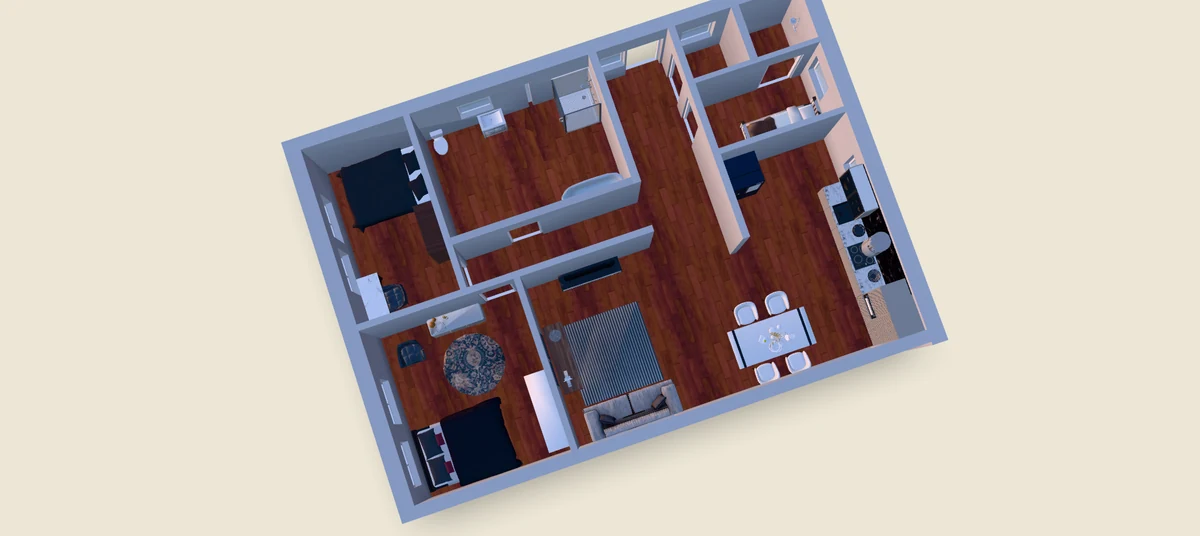
Open app.ritn3d.com in your browser, upload your PDF (single or multi-page, vector or scanned), review the auto-detected walls and rooms, and click generate — floor plan photo to walkable 3D interior in under two minutes. Ritn3D is the only floor plan to 3D tool built for phones — native iOS, Android, Windows, and web on one account — so you can pick this up on your desktop and finish on your phone. The guide below covers what kinds of PDF work best, how accurate the AI detection is, how to handle multi-page architectural PDFs, and what to do when the detection needs corrections.
Updated
Three simple steps to your interactive 3D model
Import your floor plan PDF directly from your device. Ritn3D reads vector and raster PDFs alike, extracting wall lines at the document's native resolution for maximum accuracy.
The AI parses your PDF and identifies structural elements automatically. Review the detected walls, doors, windows, and room labels, then fine-tune anything that needs adjustment.
Generate your interactive 3D model with one tap. Explore every room in orbit or walk-through mode, then share a browser link with clients or collaborators.
Professional 3D visualization made simple
Ritn3D reads your PDF at native resolution, whether it contains vector graphics from CAD software or high-resolution raster scans. No quality loss during import.
Upload multi-page PDF documents and select the page containing your floor plan. Ritn3D handles standard architectural PDF exports from tools like AutoCAD, Revit, and SketchUp.
The AI identifies wall lines, openings, and room boundaries from your PDF layout automatically. Clean architectural PDFs achieve high detection accuracy with minimal corrections needed.
Orbit around your model or walk through rooms at eye level. The interactive viewer gives you a true spatial understanding that flat PDF drawings cannot provide.
Generate a shareable link that opens your 3D model in any browser. Clients and stakeholders can explore the space interactively without installing any applications.
Everything you need to know. Can’t find the answer you’re looking for? Feel free to reach out.
Architectural PDFs exported from CAD software like AutoCAD, Revit, or SketchUp produce excellent results thanks to their clean vector lines. Scanned PDFs also work well as long as the scan is legible and the walls are clearly defined.
Yes. When you upload a multi-page PDF, Ritn3D lets you select which page contains the floor plan you want to convert. Each page is processed independently at its native resolution.
Higher quality PDFs with clear wall lines and minimal annotations produce better detection results. Architectural PDFs from CAD tools generally give the best accuracy, while low-resolution scans may require more manual adjustments in the review step.
Ritn3D detects wall positions and room proportions from the visual layout of your floor plan. While it maintains accurate relative proportions, the 3D model is generated at a normalized scale rather than preserving exact metric dimensions.
The AI focuses on detecting structural elements like walls, doors, and windows. Furniture symbols and text annotations are filtered out during detection. Heavily annotated plans may occasionally need minor corrections in the review step.
Detection accuracy depends on the input. On Ritn3D's internal benchmark set (tested June 2026 against a mix of vector CAD PDFs, scanned blueprints, and phone-camera photos with ground-truth wall counts): architectural PDFs from CAD software (AutoCAD, Revit, ArchiCAD, SketchUp) hit 90–95% first-pass accuracy because the wall lines are mathematically precise. Scanned blueprints of clean printed plans hit ~80%. Faded, skewed, or low-resolution scans drop further and will need more manual adjustment. In every case the review step lets you add, move, or delete walls, doors, and windows before generating the 3D model — so the final model is exactly the layout you confirm, not whatever the AI guessed first.
Yes. The wall detection works on line segments, not assumed right angles, so diagonal walls, octagonal rooms, and L-shaped or T-shaped layouts are all supported. Curved walls are approximated as a series of short straight segments — most viewers won't notice in the 3D output. The review step lets you nudge wall endpoints if you want to fine-tune the angles before generating.
Upload your floor plan and get an interactive 3D model in under 2 minutes. Free to start.