
Eye-Level Camera
Walkthrough mode positions the camera at standard eye height (~1.7m). Doors and windows appear at the heights they would in real life, so you experience the space accurately, not from a bird's-eye approximation.
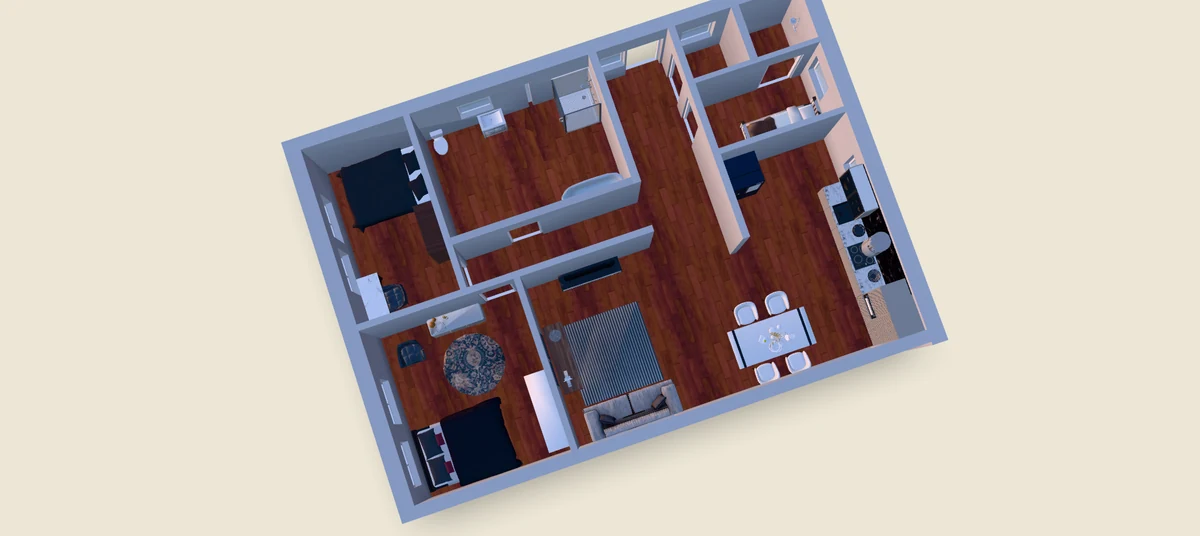
Ritn3D turns a 2D floor plan into a 3D walkthrough you can navigate at eye level — open doors, look out windows, and experience the space the way someone standing inside it would. Web app at app.ritn3d.com, also on iOS and Android. From our support logs: walkthrough mode is where roughly 40% of paying users make their upgrade decision — bird's-eye 3D is useful, but standing inside the room at eye level is what turns "this is neat" into "I have to know how this feels before construction." The walkthrough below explains how walk mode works, when to use it instead of bird's-eye orbit, and which tier unlocks it.
Updated
Three steps from flat plan to first-person navigation
Eye-level, smooth, shareable
Walkthrough mode positions the camera at standard eye height (~1.7m). Doors and windows appear at the heights they would in real life, so you experience the space accurately, not from a bird's-eye approximation.
Move with WASD on desktop or an on-screen joystick on mobile. Click and drag to look around. Movement is smooth, collision with walls is handled, and you can open doors by walking through them.
Standing inside the model tells you things a flat plan can't — whether the corridor feels cramped, whether the living-room sight lines reach the kitchen, whether a king bed actually fits past the closet door.
Every walkthrough link opens in a browser with the same controls and quality as the in-app experience. Recipients don't need the app — anyone with the link can walk through on phone, tablet, or laptop.
Walkthrough mode uses optimized indoor lighting — directional shadows are softened, point lights inside rooms are brightened — so the experience matches what walking through a real interior would feel like.
Everything you need to know. Can’t find the answer you’re looking for? Feel free to reach out.
Walkthrough mode is a first-person 3D navigation mode that drops the camera to standard human eye height (~1.7 m) inside the 3D model generated from your 2D floor plan. Instead of looking down on the floor plan from above (orbit mode), you walk through the space the way someone physically present would — moving room to room, opening doors, looking out windows, evaluating sight lines and proportions. The controls work like a casual first-person game: WASD or arrow keys on desktop, on-screen joystick on mobile, mouse-look or touch-drag to turn your head. Collisions with walls are handled automatically so you don't pass through solid geometry. Walkthrough mode is what makes the 3D model feel like a real space rather than a diorama on screen.
Use orbit mode when you need to see the whole layout at once — picking a furniture configuration, comparing two design options, or explaining the layout to someone. Use walkthrough mode when you need to evaluate the experience of being in the space — does the corridor feel cramped, does the living room sight line reach the kitchen island, does the bedroom feel airy enough at eye level. A typical client review session uses both: walk through to convey what the space feels like, then orbit out for a top-down summary of the whole plan. Many users discover proportions issues in walkthrough mode that flat plans and even bird's-eye 3D miss — a tight hallway, a long bedroom that feels narrow, a kitchen island in the wrong spot.
Walkthrough mode is included with Pro ($9.99/month, 20 renders per month, 7-day free trial) and Pro+ ($19.99/month, 40 renders, GLB and STL downloads, 7-day free trial). The free tier renders the 3D model and gives you full orbit-mode navigation but does not unlock walkthrough. The reason walkthrough is gated is performance — walkthrough rendering uses more GPU resources, especially on mobile, and concentrates Ritn3D's mobile-device optimization work on users who actually need eye-level navigation. If you want to test walkthrough before subscribing, the Pro tier includes a 7-day free trial; convert any 3D model, switch to walkthrough mode, evaluate the experience, and cancel before day 7 to avoid the charge.
Yes. The Ritn3D iOS and Android apps include walkthrough mode with on-screen joystick controls and touch-drag camera. The web app at app.ritn3d.com also supports walkthrough on mobile browsers, though for sustained walkthrough sessions the native apps generally feel smoother because they have lower per-frame overhead than a browser. Walkthrough performance on mobile is optimised — shadows are softened, light counts are reduced where it matters, and textures are capped at sensible resolutions — so even older mid-tier phones can sustain a comfortable frame rate. For client-facing walkthrough demos, we recommend the native apps; for quick personal review, the web app works equally well.
Yes. Every Pro and Pro+ render produces a shareable browser link that includes both orbit and walkthrough modes. Recipients open the link in any modern browser on desktop, tablet, or phone, and they walk through the space themselves with the same controls you used — no Ritn3D account required, no install. Free-tier renders also produce shareable links, but those links are orbit-only since walkthrough is a Pro feature. The shared walkthrough is the easiest way to convey a space to a client, an investor, or a contractor without booking a video call or sending screenshots — the recipient explores the space in their own time and can compare against the flat plan on the same screen.
Convert your 2D floor plan to 3D and switch to walkthrough mode. Walkthrough is included with Pro and Pro+, both with a 7-day free trial.