Any Floor Plan Format
PDF (single or multi-page, vector or scanned), JPG, and PNG inputs all work. Architectural CAD exports give the highest accuracy; phone photos of printed plans and screenshots from real estate listings are also supported.
Open app.ritn3d.com, upload a 2D floor plan (PDF, JPG, or PNG), review the AI's detected walls and rooms, and click generate — you have an interactive 3D model in about two minutes. The guide below covers what kinds of floor plan work best, what accuracy to expect from the AI, the differences between free and paid tiers, and how to handle common edge cases like multi-page PDFs, non-rectangular rooms, and low-resolution scans.
From 2D plan to interactive 3D model
Make sure your floor plan is in a supported format (PDF, JPG, or PNG) and that the wall lines are clear and legible. Phone photos work fine — straight-on, well-lit shots produce the most accurate detection.
Open app.ritn3d.com and upload your file. The AI parses the plan, detects walls, doors, windows, and rooms, and presents the detection in a side-by-side editor where you can verify and correct anything that needs adjustment.
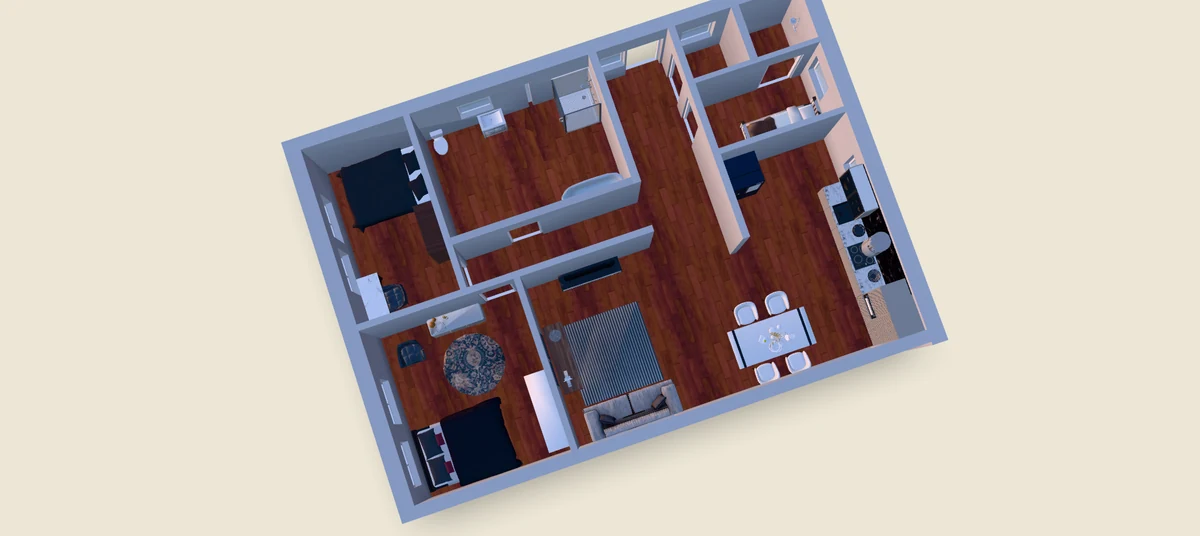
Click generate. Ritn3D builds your interactive 3D model with textured walls, PBR materials, per-room lighting, and shadows. Total time from upload to finished 3D model is about two minutes.
No CAD, no install, no 3D modeling skills
PDF (single or multi-page, vector or scanned), JPG, and PNG inputs all work. Architectural CAD exports give the highest accuracy; phone photos of printed plans and screenshots from real estate listings are also supported.
A trained neural network detects walls, doors, windows, and room boundaries from your plan automatically. You don't trace anything manually — review the detection, correct what you need to, and continue.
The output is a real 3D scene with orbit, zoom, and (on Pro and Pro+) walkthrough modes. Not a static render. You can explore the space, share it with anyone via a link, and reload it any time.
Every 3D model ships with realistic physically-based-rendered textures on walls and floors, warm per-room lighting, and ambient shadows. The result looks like a real space, not a wireframe.
Free and Pro tiers include shareable browser links that recipients open with no install. Pro+ adds GLB downloads for use in other 3D software and STL downloads for 3D printing.

Everything you need to know. Can’t find the answer you’re looking for? Feel free to reach out.
Total time from upload to finished, interactive 3D model is about two minutes on Ritn3D — and most of that is the AI detection step and the review where you verify the result before generating. Upload itself is a few seconds for a typical PDF or phone photo. The AI detection takes 20–40 seconds depending on plan complexity. The review step is whatever you make it: some users tap through in 15 seconds because the detection landed correctly, others spend a minute or two adding a missing door or correcting an angled wall. The final 3D generation itself completes in 30–60 seconds. Compare this to manual 3D modeling in SketchUp or Revit, which takes 2–6 hours of skilled labor for a comparable basic study model.
Accuracy depends on the input. Vector PDFs exported from CAD software (AutoCAD, Revit, ArchiCAD, SketchUp) produce the highest accuracy because the wall lines are mathematically precise — most users do not need any corrections at all on a clean architectural PDF. Scanned PDFs and printed-plan photos are usually accurate enough to use with one or two minor edits in the review step. Phone photos of printed plans produce reliable results when taken straight-on with normal indoor lighting; sharply angled photos, glare, or partial crops introduce noise that the review step lets you fix. In every case, the review step gives you the final word — you can add, move, or delete walls, doors, and windows before generating, so the 3D model exactly matches the layout you confirm.
Ritn3D accepts three input formats: PDF (single or multi-page, vector or scanned), JPG, and PNG. For PDFs, multi-page documents are supported — you select which page contains the floor plan you want to convert. For JPG and PNG, valid sources include phone-camera photos of printed plans, scanned blueprints, screenshots from real estate listings, exported images from design software, and photos of architectural drawings. Hand-drawn floor plans on whiteboards or napkins are not currently supported because the detection model is trained on architectural conventions (straight walls, standard symbols) rather than freeform sketches. DWG and other native CAD formats are not supported directly; export them to PDF first from your CAD tool and the PDF flow handles the rest.
Ritn3D's free tier converts three floor plans per month at no cost — no credit card, no time-limited trial. For more renders or unlocked features, Pro is $9.99/month for 20 renders plus walkthrough mode, drag-and-drop furniture placement, full-HD textures, no watermark, 50 share opens per project, and 90-day cloud sync, with a 7-day free trial. Pro+ is $19.99/month for 40 renders plus GLB downloads, 10 STL downloads per month for 3D printing, and extra download credits at $3.99 each that roll over month to month. Compare to alternative routes: a freelance 3D artist typically charges $200–500 per model and takes 3–7 days, and professional CAD software costs $300–2,000 per year per seat.
Yes. The wall detection treats walls as individual line segments rather than assuming right angles, so diagonal walls, octagonal rooms, alcoves, L-shaped and T-shaped layouts, and open-plan spaces where rooms flow into each other are all supported. Curved walls are approximated as a series of short straight segments — most viewers don't notice in the final 3D output. For open-plan spaces with no actual wall between two rooms, the review step lets you decide whether to treat the area as one large room or two — the choice affects how the model labels and lights the space. The 3D model output preserves the proportions of your floor plan exactly, regardless of how unconventional the layout is.
No. Ritn3D is built specifically for users who do not have CAD or 3D modeling experience — the workflow is upload, review, generate, with no manual modeling step. The review editor uses simple click-and-drag controls to add or fix detected walls, not the line-and-arc tools of professional CAD. There is no SketchUp-style extrusion, no Revit-style families, no Blender-style modeling — the AI handles all of that automatically based on your 2D floor plan. If you can read a floor plan well enough to know what's a wall versus what's a doorway, you can use Ritn3D. The product was built explicitly to remove the CAD/3D barrier so non-architects can produce 3D models on the same timeline as a quick design review.
Open the web app, drop in your floor plan, and get an interactive 3D model in under 2 minutes. Free to start.