
Camera Photo Support
Take a photo of a floor plan directly with your phone camera. Ritn3D handles perspective distortion, varying lighting conditions, and different paper sizes without requiring a flatbed scanner.
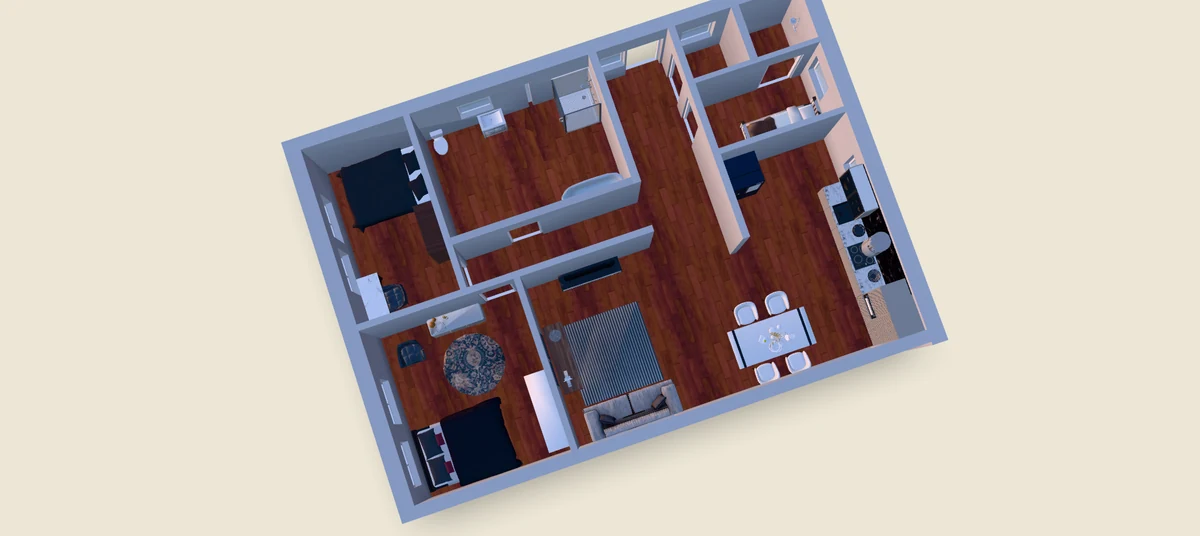
Open app.ritn3d.com in your browser, upload a JPG or PNG (a phone photo, a screenshot from a real estate listing, or an exported image), review the AI's detected walls and rooms, and click generate — floor plan photo to walkable 3D interior in under two minutes. Then share a live 3D link that opens in any browser — no install, no login for whoever you send it to. A straight-on phone-camera photo of a printed floor plan detects walls, doors, and windows on the first pass roughly 80% of the time — comparable accuracy to a scanned blueprint, and within 10–15% of an architectural PDF from CAD software. The guide below covers how to photograph a plan for the best results, what accuracy to expect from different image types, and what to do when the detection needs corrections.
Updated
Three simple steps to your interactive 3D model
Take a photo of your floor plan with your phone camera, or upload an existing JPG or PNG image. Ritn3D processes images of any resolution and handles perspective distortion from camera angles.
The AI analyzes your image to identify walls, doors, windows, and room boundaries. Review the results and adjust any elements that need correction before generating your model.
One tap creates your interactive 3D model. Explore the space from above or walk through rooms at eye level, then share a link so others can view it in their browser.
Professional 3D visualization made simple
Take a photo of a floor plan directly with your phone camera. Ritn3D handles perspective distortion, varying lighting conditions, and different paper sizes without requiring a flatbed scanner.
Upload floor plan images in JPG or PNG format from any source. Works with screenshots from real estate listings, exported images from design software, or photos of printed architectural plans.
Scan a printed floor plan or photograph an architectural drawing, and convert it to 3D. The AI detects wall lines from a wide range of professional plan styles and formats.
The AI classifies rooms by type based on their size, shape, and position in the layout. Kitchen, bathroom, bedroom, and living areas are identified and labeled automatically.
Move through your converted model room by room at eye level. The walk-through mode transforms a flat image into a spatial experience that reveals the true feel of the layout.
Share your 3D model with a single link. Anyone can open it in their browser and explore the interactive model without downloading software or creating an account.
Everything you need to know. Can’t find the answer you’re looking for? Feel free to reach out.
Clear, well-lit photos with legible wall lines produce the best results. The floor plan should fill most of the frame, and the image should be in focus. Higher resolution images give the AI more detail to work with.
Hand-drawn floor plans are not currently supported. The AI works best with clean digital floor plans, scanned architectural drawings, and PDF exports from design software. For accurate results, use professionally produced plans with straight, consistent wall lines.
Ritn3D supports JPG and PNG image formats. If your floor plan is in a different format like TIFF or BMP, you can convert it to JPG or PNG using any image viewer before uploading.
For best results, photograph the floor plan straight on to minimize perspective distortion. The AI can handle moderate angles, but a top-down photo of the plan produces the most accurate wall detection.
There is no strict minimum, but images above 800 pixels on the shortest edge work best. Very large images are automatically downscaled during processing. Standard phone camera photos are well within the ideal range.
Yes. Screenshots or saved images of floor plans from real estate websites work well as input. Ensure the image is clear and the walls are visible. Marketing overlays or heavy branding may require minor corrections in the review step.
Accuracy on phone-camera photos depends on three factors: the angle the photo was taken at, the resolution, and whether the wall lines are clean and uninterrupted. On Ritn3D's internal benchmark set (tested June 2026 against a mix of input types with ground-truth wall counts), a straight-on phone-camera photo of a printed floor plan under normal indoor lighting detects walls, doors, and windows correctly on the first pass for roughly 80% of inputs — most users only need to confirm the result in the review step. That is comparable to a scanned blueprint and within 10–15% of an architectural PDF exported directly from AutoCAD, Revit, ArchiCAD, or SketchUp, where wall lines are mathematically precise. Sharply angled photos, glare on glossy paper, or partial crops where wall lines are cut off introduce more noise. Whatever the AI gets wrong, the review step lets you fix walls, doors, and windows before the 3D model is generated — you are not stuck with the first detection.
Architectural PDFs from CAD software win on raw accuracy because the wall lines are stored as mathematically precise vectors — the AI does not have to infer where the wall edge is. On Ritn3D's June 2026 internal benchmark set, vector PDFs detected correctly on the first pass roughly 90–95% of the time, scanned blueprints around 80%, and phone-camera JPGs of printed plans around 75–85% depending on lighting and angle. The accuracy gap closes in the review step where any user can drag wall endpoints, add or delete walls, and reposition doors and windows. For most homeowners, real estate agents, and designers, a phone photo of a printed plan is the most convenient input and produces a usable 3D model with no edits or one or two minor edits.
Both work. The detection treats walls as individual line segments rather than assuming right angles, so angled walls, octagonal rooms, alcoves, and open-plan layouts where one room flows into another are all handled. For open-plan spaces where there's no actual wall between two rooms, you can decide in the review step whether to treat them as one large room or two — the choice affects how the 3D model labels and lights the space.
Upload your floor plan and get an interactive 3D model in under 2 minutes. Free to start.